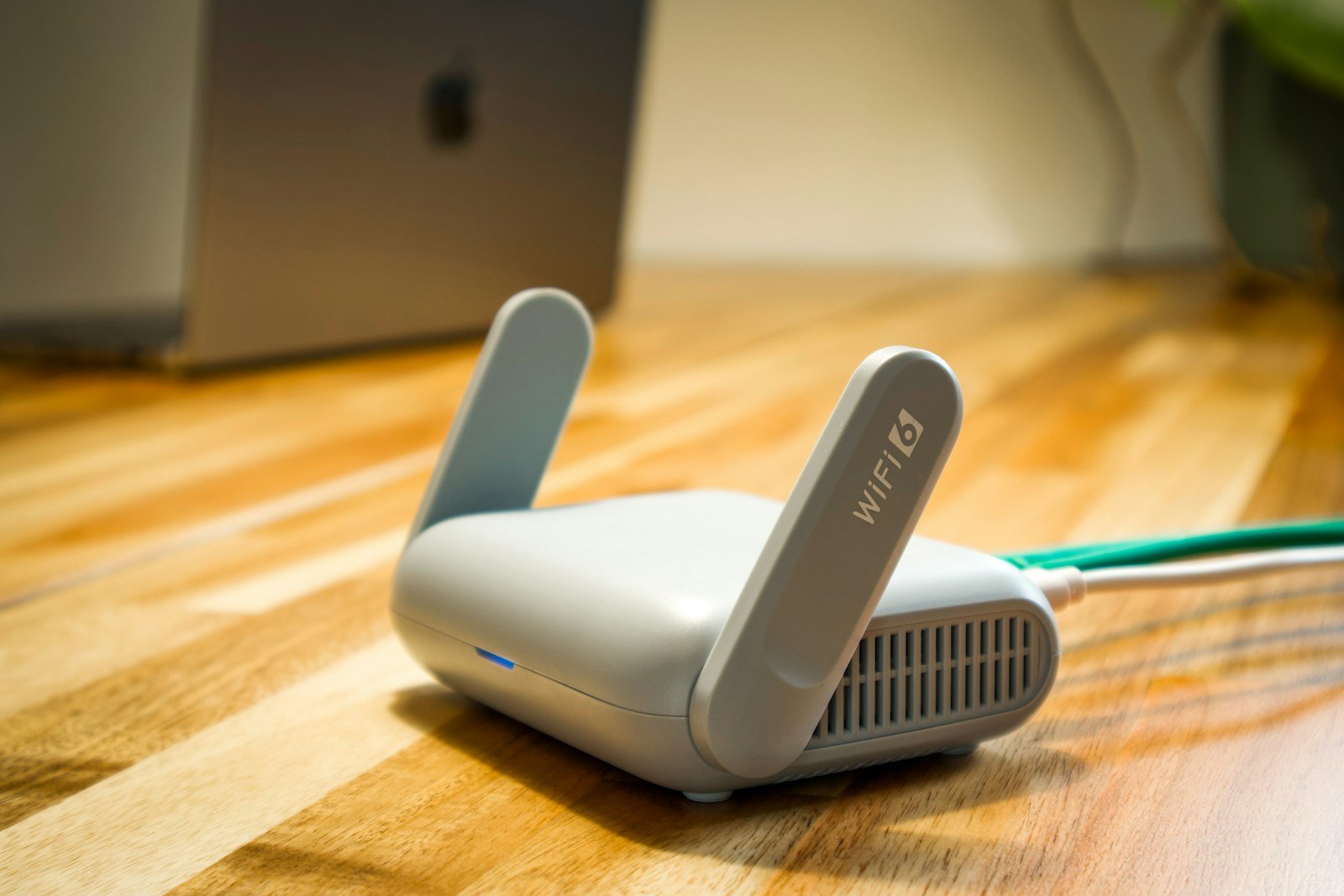
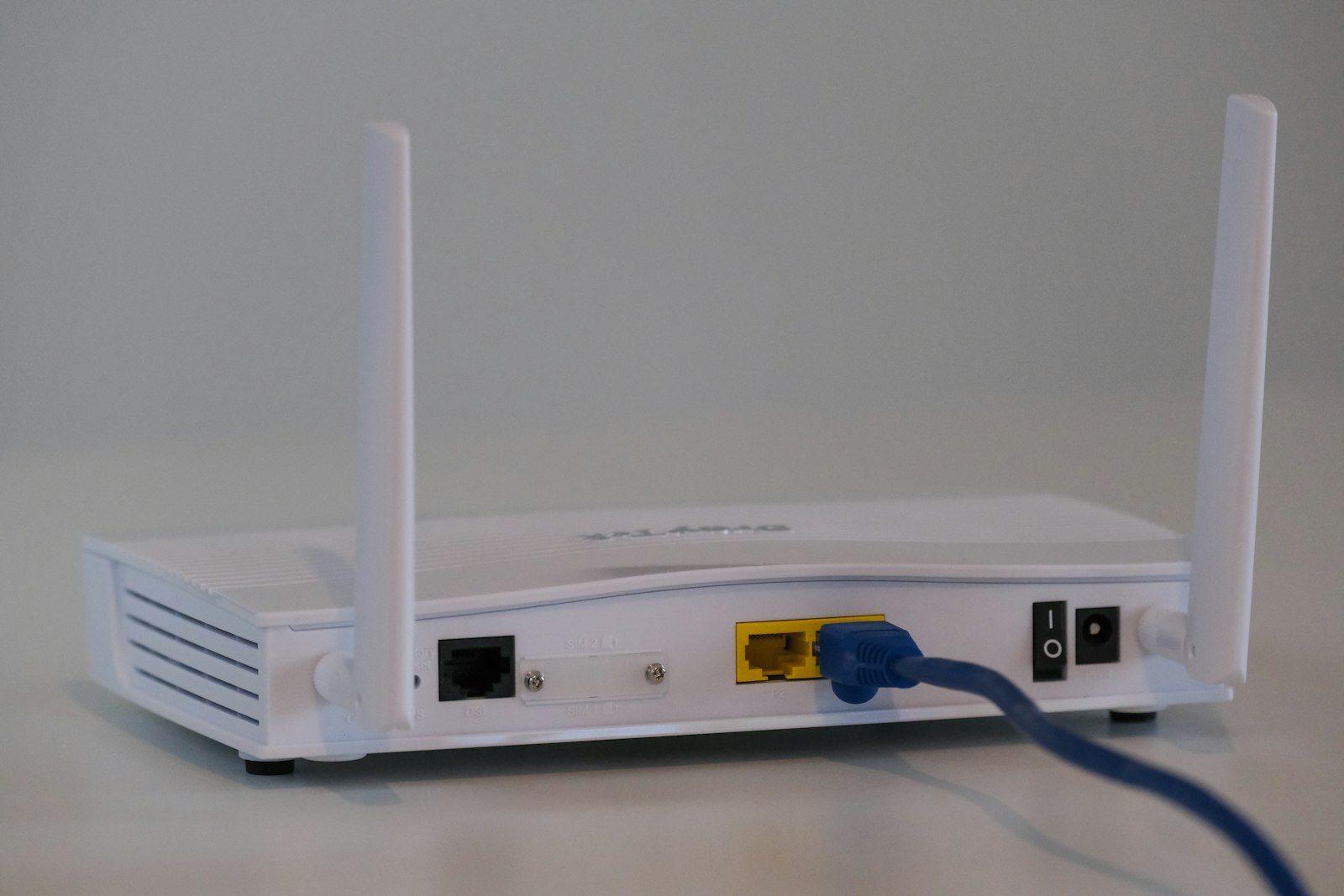
A common problem in many homes is slow Wi-Fi, even when the internet plan offers high speeds.
For example, you may have a 500 Mbps fibre optic connection, but experience delays, dropouts or significantly lower speeds in your bedroom or home office.
This does not necessarily mean there is a problem with your internet provider. Wireless connectivity is affected by several factors, including the distance from the router, walls, interference and the quality of your equipment.
To improve your Wi-Fi, you first need to identify the cause of the problem.
1. Router Placement: Why It Matters
The position of your router has a significant impact on wireless coverage.
In many homes, routers are placed inside cabinets, behind televisions or in a corner, preventing the signal from being distributed properly throughout the property.
For better performance:
- Place the router as centrally as possible in your home.
- Choose a relatively open location.
- Avoid enclosed cabinets and metal surfaces.
- Do not place it directly on the floor.
- Keep it away from devices that may cause interference.
- If your home has multiple floors, consider the router's position in relation to the areas you use most.
A simple change in location can noticeably improve coverage without requiring you to buy new equipment.
2. 2.4 GHz, 5 GHz and 6 GHz: What Are the Differences?
Modern routers generally use two main frequency bands: 2.4 GHz and 5 GHz. Some newer models also support the 6 GHz band.
Each band has different characteristics.
2.4 GHz Wi-Fi
- Generally offers a wider range.
- Can better serve devices located further away from the router.
- Is more susceptible to interference, as it is also used by many other wireless devices.
- Generally offers lower maximum speeds than newer frequency bands.
5 GHz Wi-Fi
- Can provide higher speeds.
- Is often suitable for streaming, gaming and demanding applications.
- Generally has a shorter range than 2.4 GHz.
- Is more affected by obstacles and walls.
6 GHz Wi-Fi
The 6 GHz band is used by devices that support Wi-Fi 6E or Wi-Fi 7, depending on the equipment. It can provide access to additional available spectrum and improve performance under suitable conditions, but it has range and availability limitations compared with lower frequencies.
The right choice depends on the distance, the device and your requirements.
3. Too Many Connected Devices Can Affect Performance
A modern home may have dozens of connected devices:
- Smartphones.
- Laptops and computers.
- Smart TVs.
- Tablets.
- Gaming consoles.
- Security cameras.
- Smart home appliances.
- Home automation systems.
When many devices use the network simultaneously, overall data traffic can increase and reduce the capacity available to each device.
Check your router settings to see which devices are connected and disconnect any that you no longer use or do not recognise.
If the problem occurs mainly when several family members use the internet simultaneously, you may need a better router or a faster connection.
4. Wi-Fi Extender or Mesh Wi-Fi: Which Do You Need?
If the signal is strong near the router but weakens in other rooms, you may need additional equipment.
The two most common solutions are Wi-Fi Extenders and Mesh Wi-Fi systems.
Wi-Fi Extender (Signal Repeater)
A Wi-Fi Extender receives the existing wireless signal and retransmits it over a wider area.
It can be an affordable solution for a specific area of your home where the signal is weak.
However, its performance depends on the quality of the original signal and the device's technology. If it is placed somewhere where the Wi-Fi signal is already very weak, it will not be able to provide satisfactory coverage extension.
Mesh Wi-Fi
A Mesh Wi-Fi system consists of two or more units that work together to create a single wireless network across a larger area.
It can be suitable for:
- Large homes.
- Multi-storey houses.
- Properties with many walls.
- Areas where consistent coverage is required in multiple rooms.
- Homes with many simultaneously connected devices.
Compared with a basic repeater, a properly designed Mesh system can provide a more consistent connection experience as you move around your home.
5. When Should You Replace Your Router?
If your router is quite old, it may not be able to take full advantage of your internet connection.
Signs that you may need an upgrade include:
- It does not support the speeds offered by your internet plan.
- It does not support modern Wi-Fi standards.
- It experiences frequent disconnections.
- It struggles to handle multiple devices.
- It does not have the necessary Ethernet ports.
- It no longer receives security updates from its manufacturer.
When buying a new router, consider Wi-Fi 6, Wi-Fi 6E or Wi-Fi 7 technology, depending on your budget and requirements.
You do not necessarily need to buy the most expensive model. What matters is that it is compatible with your connection speed and provides adequate coverage for your space.
6. Wi-Fi 6, Wi-Fi 6E and Wi-Fi 7: What Should You Know?
Newer generations of Wi-Fi are designed to improve wireless communication and support more connected devices.
Wi-Fi 6 (802.11ax)
It offers improvements in managing multiple simultaneous connections and can provide better performance in environments with many connected devices.
Wi-Fi 6E
It extends Wi-Fi 6 capabilities to the 6 GHz frequency band, where supported.
Wi-Fi 7 (802.11be)
This is a newer technology designed to deliver higher performance, greater capacity and improved management of wireless connections.
To benefit from the advantages of a newer Wi-Fi generation, both your router and connected devices must be compatible.
7. When Is an Ethernet Connection Better Than Wi-Fi?
Although Wi-Fi offers convenience, a wired Ethernet connection may be preferable for devices that require a stable and reliable connection.
For example:
- Desktop computers.
- Gaming consoles.
- Smart TVs.
- Business computers.
- Data storage systems.
A wired connection reduces the effects of wireless interference and can provide more consistent performance.
If you have the option of connecting your computer or television via Ethernet, it is worth considering.
8. Wi-Fi Interference in Apartment Buildings
In apartment buildings and densely populated areas, many wireless networks may operate simultaneously on the same frequencies.
This can create interference and affect Wi-Fi performance.
Some routers automatically select the most suitable channel. In other cases, you can change this setting through the router's administration interface.
If you are unfamiliar with these settings, you can ask your technician or internet provider's support team for assistance.
9. How to Check Whether Your Wi-Fi Is Working Properly
Before requesting an upgrade or buying new equipment, it is useful to perform a few simple checks.
Step 1: Measure your speed via Ethernet
Connect a computer directly to the router using a cable and run a speed test.
Step 2: Measure your speed via Wi-Fi
Run a speed test near the router and then in different rooms.
Step 3: Compare the results
If the wired connection performs well but Wi-Fi speeds are poor, the problem is likely related to wireless coverage or your equipment.
If the wired connection also delivers significantly lower speeds than expected, contact your provider and request a technical check.
10. Practical Tips to Improve Your Wi-Fi
Before investing in new equipment, try the following:
- Restart your router if necessary.
- Check for available software updates.
- Move the router to a more central location.
- Avoid placing it behind large objects.
- Disconnect devices that are not in use.
- Use Ethernet for demanding devices that require a stable connection.
- Consider a Mesh system for larger spaces.
- Check whether your router supports your internet plan's speed.
- Use a strong Wi-Fi password and a modern encryption method.
- Regularly check your connection's actual performance.
Frequently Asked Questions (FAQ)
Why is my internet fast but my Wi-Fi slow?
Internet connection speed and wireless coverage are two different things. Your router, interference, walls and distance can all limit the speed your device receives.
Which is better, a Wi-Fi Extender or Mesh?
An Extender can serve a specific area with a weak signal. Mesh is often more suitable for larger homes or multi-storey properties where consistent coverage is required throughout.
Is Wi-Fi 6 better than Wi-Fi 5?
Wi-Fi 6 offers improvements in performance and the management of multiple devices. To benefit from these advantages, you need a compatible router and compatible devices.
Where should I place my router?
Ideally, place it in a central, relatively open location in your home, away from obstacles and metal surfaces.
Do I need a new router if I upgrade to fibre?
Not necessarily. First, check whether your existing equipment supports the technology and speed of your new connection.
Can Mesh Wi-Fi cover my entire home?
It can significantly improve coverage, but the results depend on the number and placement of the units, the layout of your property and the building materials.
Conclusion
Fast and reliable Wi-Fi does not depend solely on the internet plan you have chosen. Proper router placement, suitable equipment and effective wireless network management can significantly improve your everyday connectivity experience.
Before changing your plan or purchasing new equipment, check whether the problem lies with the internet connection itself or with the wireless coverage in your home.
Globy+ can help you explore available fixed broadband and telecommunications solutions based on the needs of your home or business.
Contact us to find out more about the available options.
This article is general information, not personal advice. Terms and cover depend on the provider and your contract. Your advisor checks what applies to you.
Want an advisor to check this for you?
A few short questions, and we'll get back to you shortly.